
TL;DR:
Problem: Sandboxed Linux container agents in WSL2 (Claude Code, Gemini CLI) cannot natively execute Windows MCP servers (like Power BI Modeling MCP) due to transport limitations across OS boundaries, Hyper-V Firewall blocks on port 3000, and JSON-RPC stream framing issues.
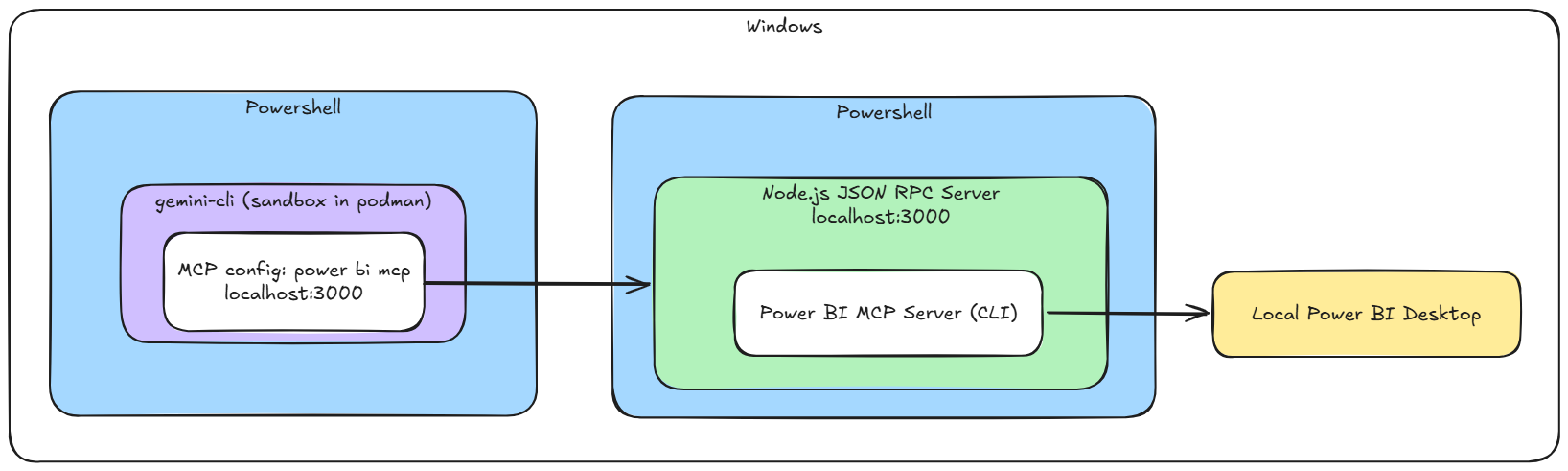
Solution: A Node.js proxy script running on the Windows host receives HTTP requests from the container, translates them to native host stdio process communication, aggregates fragmented JSON payloads, and safely handles asynchronous notifications.
Integrating Model Context Protocol (MCP) servers with developer tooling provides language models with direct, structured context from local environments. When paired with tools like Microsoft’s Power BI Modeling MCP, CLI agents such as Claude Code (claude) and Gemini CLI (gemini) can inspect tabular models, execute DAX queries, and modify TMDL definitions in real time against local Power BI Desktop instances.
However, security best practices dictate that AI CLI agents run inside sandboxed environments (such as Podman or Docker Linux containers). This creates a sharp conflict when trying to execute Windows-native binaries from within an isolated Linux runtime.
This article details the architectural barriers involved—including Windows 11 Hyper-V Firewall restrictions—and provides a lightweight Node.js proxy script that bridges communication between sandboxed CLI agents and native Windows executables.
Technical Challenges on Windows Host Systems
When running agent CLIs with container sandboxing enabled, four key friction points emerge:
- Operating System and DLL Incompatibilities
The Power BI Modeling MCP server binary (.exe) relies on Windows system libraries like iphlpapi.dll (IP Helper API) to discover running Power BI Desktop instances. Inside a Linux container sandbox, these Windows libraries do not exist, causing standard Linux execution attempts to fail immediately. - Transport Layer Disconnect (stdio vs. HTTP/SSE)
MCP servers typically communicate via Standard Input/Output (stdio). A containerized sandbox cannot attach native stdio streams directly to an executable running on the host OS. Communication must be converted to network protocols like HTTP or SSE. - Hyper-V Firewall Restrictions (Windows 11 22H2+)
The Hyper-V Firewall filters traffic flowing through virtual network adapters created for container runtimes and WSL. Even if standard Windows Defender Firewall ports are open, inbound traffic from the container virtual switch to the host will be dropped by default unless explicitly allowed. - Stream Framing and JSON-RPC Protocol Differences
MCP implementations on Windows frequently frame JSON payloads across fragmented data chunks or attach length headers. Raw TCP forwarding leads to parsing failures such as Unexpected end of JSON input. Additionally, standard JSON-RPC notification methods (such as notifications/initialized) do not expect responses, causing synchronous listeners to time out.
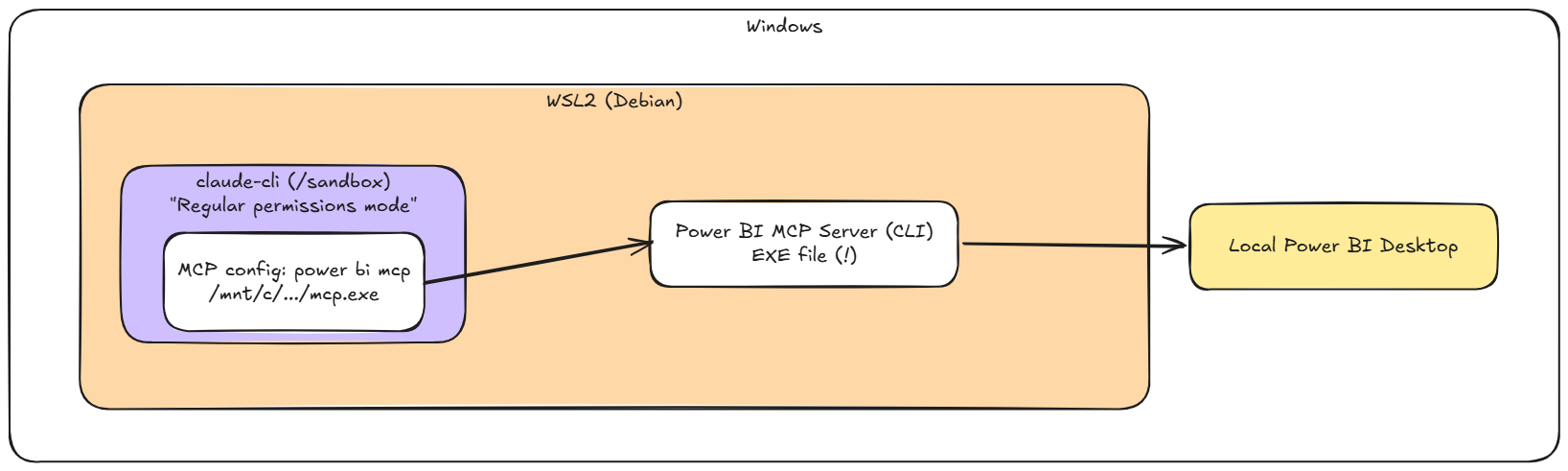
The rough outline for Claude and for gemini are shown below:
Implementation Guide
Step 1: Configure Windows Hyper-V Firewall Rules
Because container traffic is routed through a Hyper-V Virtual Switch, execute the following command in PowerShell as Administrator to permit inbound traffic on port 3000 from the container switch:
|
1 2 3 4 5 6 7 |
New-NetFirewallHyperVRule -Name "AllowMCPBridgeInbound" ` -DisplayName "Allow Inbound MCP Proxy Bridge from Sandbox" ` -Direction Inbound ` -VMCreatorId '{40E0AC32-46A5-438A-A0B2-2B479E8F2E90}' ` -Protocol TCP ` -LocalPorts 3000 ` -Action Allow |
Step 2: Deploy the Node.js Bridge Script (bridge.js)
Save this proxy script on your Windows host. It handles non-blocking notifications, aggregates fragmented stdout buffers, and exposes the executable over HTTP.
|
1 2 3 4 5 6 7 8 9 10 11 12 13 14 15 16 17 18 19 20 21 22 23 24 25 26 27 28 29 30 31 32 33 34 35 36 37 38 39 40 41 42 43 44 45 46 47 48 49 50 51 52 53 54 55 56 57 58 59 60 61 62 63 64 65 66 67 68 69 70 71 72 73 74 75 76 77 78 79 80 81 82 83 84 85 86 87 88 89 90 91 92 93 94 95 96 97 98 99 100 101 102 |
const { spawn } = require('child_process'); const http = require('http'); const args = process.argv.slice(2); const help = args.includes('--help') || args.includes('-h'); const verbose = args.includes('--verbose') || args.includes('-v'); const exePath = args.find(arg => !arg.startsWith('-')); if (help || !exePath) { console.log(` Power BI MCP Bridge Usage: node bridge.js [path-to-exe] [options] Arguments: path-to-exe Full path to the native Windows MCP executable. Options: -v, --verbose Log raw JSON-RPC payloads and chunk buffering status. -h, --help Display this help message. `); process.exit(0); } const getTimestamp = () => `[${new Date().toLocaleTimeString()}]`; const mcpProcess = spawn(exePath, ['--start']); let currentResponse = null; let responseBuffer = ""; mcpProcess.stderr.on('data', (data) => { console.error(`${getTimestamp()} [EXE LOG/ERROR]: ${data.toString().trim()}`); }); mcpProcess.stdout.on('data', (data) => { if (!currentResponse) return; responseBuffer += data.toString(); const jsonStartIndex = responseBuffer.indexOf('{'); if (jsonStartIndex !== -1) { const payloadCandidate = responseBuffer.substring(jsonStartIndex); try { JSON.parse(payloadCandidate); if (verbose) console.log(`${getTimestamp()} [RESPONSE] Valid JSON assembled. Returning to agent.`); currentResponse.writeHead(200, { 'Content-Type': 'application/json' }); currentResponse.end(payloadCandidate.trim()); currentResponse = null; responseBuffer = ""; } catch (e) { if (verbose) console.log(`${getTimestamp()} [BUFFER] Partial JSON received. Awaiting chunks...`); } } }); const server = http.createServer((req, res) => { if (req.method === 'POST') { let requestBody = ''; req.on('data', chunk => { requestBody += chunk; }); req.on('end', () => { try { const parsedPayload = JSON.parse(requestBody); if (verbose) console.log(`${getTimestamp()} [REQUEST] Method: ${parsedPayload.method}`); if (parsedPayload.method && parsedPayload.method.startsWith('notifications/')) { mcpProcess.stdin.write(requestBody + '\n'); res.writeHead(202); res.end(); return; } currentResponse = res; responseBuffer = ""; mcpProcess.stdin.write(requestBody + '\n'); setTimeout(() => { if (currentResponse === res) { console.log(`${getTimestamp()} [TIMEOUT] Method timed out: ${parsedPayload.method}`); res.writeHead(504); res.end(JSON.stringify({ error: "Execution timeout" })); currentResponse = null; } }, 15000); } catch (err) { res.writeHead(400); res.end(JSON.stringify({ error: "Malformed JSON payload" })); } }); } }); server.listen(3000, '0.0.0.0', () => { console.log(`${getTimestamp()} Bridge listening on http://0.0.0.0:3000/mcp`); console.log(`${getTimestamp()} Target executable: ${exePath}`); }); process.on('SIGINT', () => { mcpProcess.kill(); process.exit(); }); |
Step 3: Configure Your CLI Clients
Option A: Gemini CLI (gemini) Configuration
Add the bridge entry to your settings.json file:
|
1 2 3 4 5 6 7 8 |
{ "mcpServers": { "powerbi-modeling-mcp": { "httpUrl": "http://host.containers.internal:3000/mcp", "timeout": 30000 } } } |
Option B: Claude CLI (claude / Claude Code) Configuration
Add the bridge entry to your .mcp.json or ~/.claude.json file:
|
1 2 3 4 5 6 7 8 |
{ "mcpServers": { "powerbi-modeling-mcp": { "type": "http", "url": "http://host.containers.internal:3000/mcp" } } } |
Step 4: Verification and Workflow
- Start the bridge on the Windows host:
1node bridge.js "C:\Path\To\powerbi-modeling-mcp.exe" --verbose - Trigger tool discovery in your CLI client of choice:
- For Gemini CLI: /mcp refresh
- For Claude CLI: claude mcp list or /mcp
Conclusion
By combining targeted Hyper-V Firewall rules with a Node.js proxy bridge, sandboxed CLI agents like Claude CLI and Gemini CLI can interact seamlessly with Windows-native MCP servers. This setup preserves full container isolation while granting your AI agents full access to local Power BI models.